When you attempt to install .NET Framework 3.5 or any other optional feature using “Windows Features” (optionalfeatures.exe) dialog or using DISM command-line, error 0x800F0954 may popup.
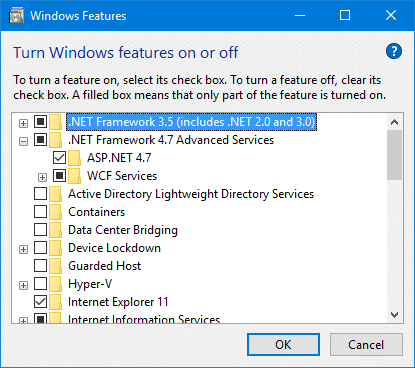
After enabling .NET Framework 3.5 and clicking OK, the following error may appear:
Windows couldn’t complete the requested changes.
The changes couldn’t be completed. Please reboot your computer and try again.
Error code: 0x800F0954

Step 1: Bypass WSUS to Install Features/Updates Directly from Windows Update
To fix the problem, temporarily bypass WSUS server using the following registry edit (requires administrator privileges).
- Right-click Start, and click Run
- Type
regedit.exeand click OK - Go to the following registry key
HKEY_LOCAL_MACHINE\SOFTWARE\Policies\Microsoft\Windows\WindowsUpdate\AU
- In the right-pane, if the value named
UseWUServerexists, set its data to0 - Exit the Registry Editor
- Restart Windows.
See if you’re able to install .Net Framework 3.5 or any optional features now. In most cases, the above steps should fix the problem.
Incase Can’t work this method try another option
Method : 2
1. Download the Windows 10 ISO.
(NOTE– While downloading the don’t forget to match the build no of the ISO with your Windows 10 on your computer.)
2. Now mount the ISO by double-clicking on it.
3. Remember the drive letter name ( like “G:”/”H:” etc).
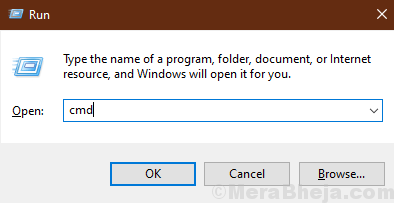
4. Now, you have to press Windows key+R to launch the Run.
5. When you can see the Run window, you will need to type “cmd” in that Run window and click on “OK“.
Now copy-paste this command on your Command prompt window, and hit Enter.
dism /online /enable-feature /featurename:NetFX3 /Source:H:\sources\sxs /LimitAccess
NOTE– You will need to change the drive letter in the command according to the drive letter where you have loaded the DVD.
dism /online /enable-feature /featurename:NetFX3 /Source:G:\sources\sxs /LimitAccess

Hope it will Working Fine
Thank you……………………………………………..

 Techsolutions