1. Update your display driver
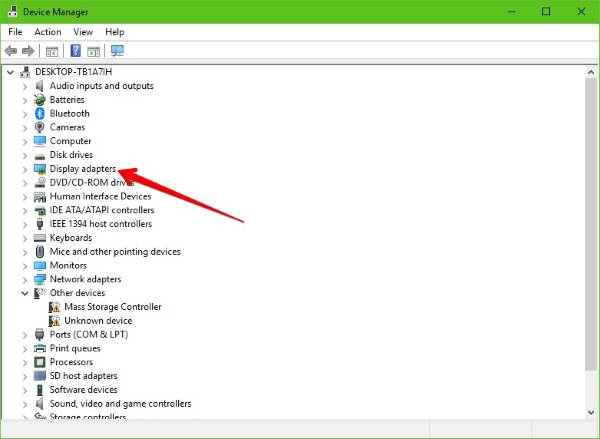
2. Run SFC & DISM
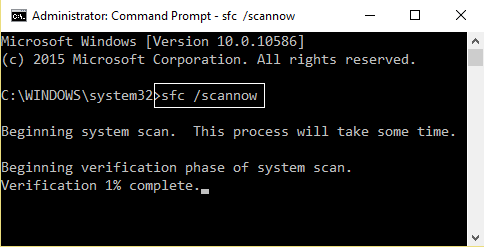
Now, type in the following command,
sfc /scannow
Hit Enter.
Finally, Restart your computer for the changes to take effect.
3. Turn off Fast Start-up
Hit the WINKEY + R button combinations, type in Control and hit Enter to launch the Control Panel. Then search for Power Options on the top right search field given to you and find it.
On the left panel, click on Choose what the power buttons do.
On the next page, click on Change settings that are currently unavailable.
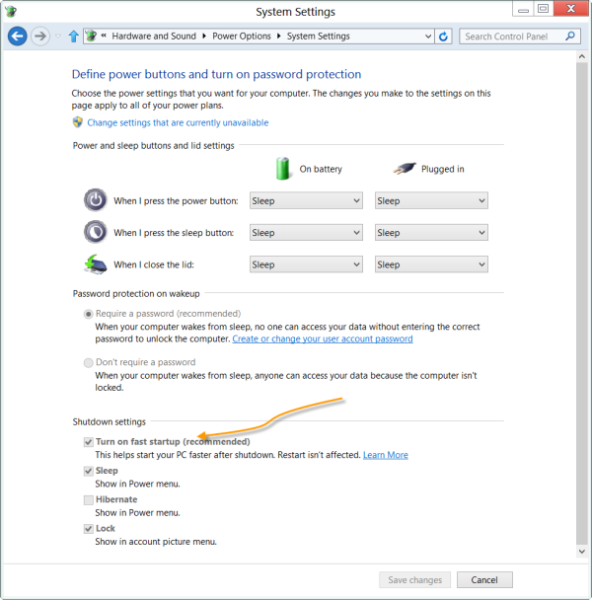
Uncheck Turn on Fast Start-up (Recommended). Reboot your computer for the changes to take effect.
4. Turning off Sleep Mode
Another fix which worked for the majority of the users was disabling sleep mode. The error seems to be related to the computer sleeping or saving predefined data (as in fast startup). We can try disabling the sleep mode completely and check if this fixes the problem. Do note that if this doesn’t make a difference, you can always revert the changes.
- Right click on the battery icon present at the bottom right of your screen and click “Power Options”.
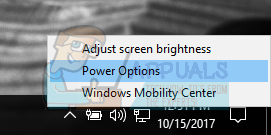
If you own a PC and don’t see this option, press Windows + S and type “choose a power plan”. Click on the most relevant result.
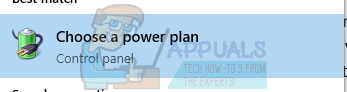
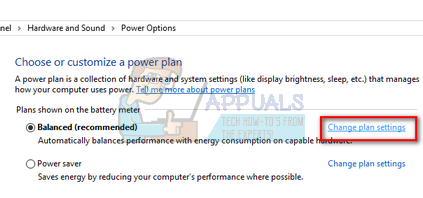
- There will be many plans listed in the window. Click on “Change plan settings” in front of the power plan which is currently active on your computer.
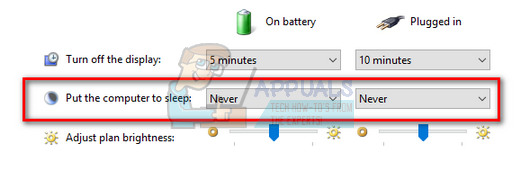
- On this window, you will see an option “Put the computer to sleep”. Make sure that the option is set to as “Never” in both conditions (on battery and plugged in). Click “Save changes” and exit.
- Now reboot your computer and check if the problem went away.
5. Check for Windows Updates
1) Type Windows Update in the search box. Click Check for updates on the top result.
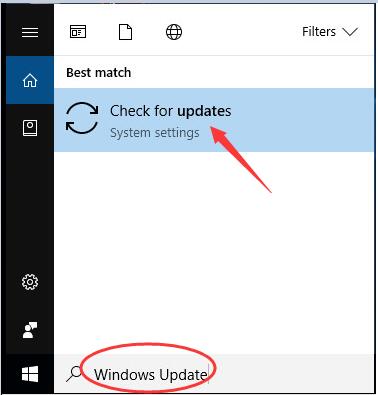
2) Click Check for updates on the right pane of pop-up window.
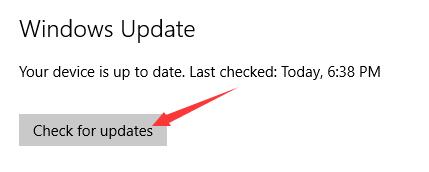
Go on to follow the on-screen instructions to install the updates.
That’s all there is to it.
Your any comment or feedback is welcomed coming below, thanks.
6. Miscellaneous fixes
You may run the following command in CMD as well:
chkdsk /f /r
You can also try disabling your antivirus program. McAfee Antivirus has majorly been found the culprit in this issue. So, I would really recommend you to uninstall your third-party antivirus program.
To do this, open Control Panel. Click on Uninstall a Program. From the whole populated list your installed software, select your Antivirus program. Right-click on the entry and click on Uninstall. Follow the onscreen prompts.
Reboot your computer for the changes to take effect.
……………………………………..Thank You………………………………..

 Techsolutions