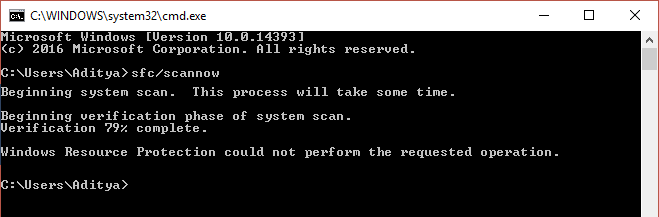
Why the error Windows Resource Protection could not perform the requested operation occurs when running SFC command?
-Damaged, corrupt, or missing files
-SFC cannot access winsxs folder
-Damaged Hard disk partition
-Corrupted Windows files
-Wrong System Architecture
Table of Contents
- [Fixed] Windows Resource Protection could not perform the requested operation
- Method 1: Run Windows Check Disk
- Method 2: Modify Security Descriptors
- Method 3: Run DISM commands
- Method 4: Run Windows Update troubleshooter
- Method 5: Run startup/Automatic Repair
- Method 6: Run %processor_architecture%
Method 1: Run Windows Check Disk
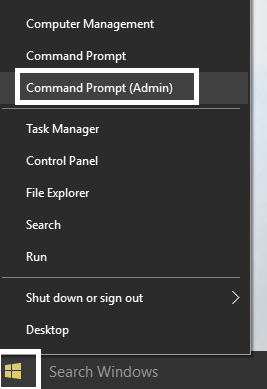
1.Press Windows Key + X and select Command Prompt(Admin).
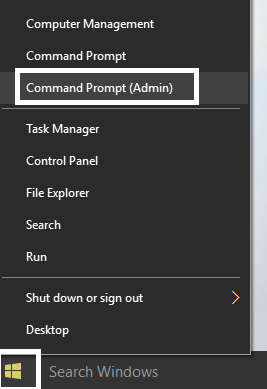
2.Type the following command in cmd and hit enter:
CHKDSK C: /R
3.Next, it would ask to schedule the scan when the system restarts, so type Y and hit enter.
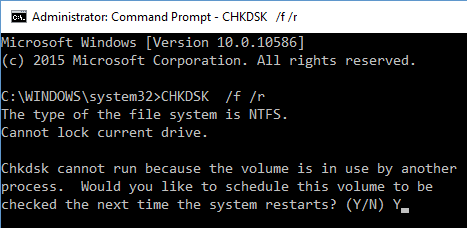
4.Restart your PC and wait for the Check Disk Scan to finish.
Note: CHKDSK may take some time to complete depending upon the size of your hard disk.
Method 2: Modify Security Descriptors
In most of the cases the error occurs because the SFC cannot access winsxs folder, so you have to manually modify the security descriptors of this folder in order to Fix Windows Resource Protection could not perform the requested operation error.
1.Press Windows Key + X and select Command Prompt (Admin).
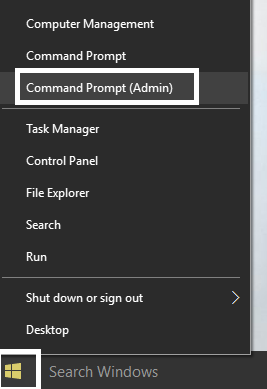
2.Type the following command in cmd and hit enter:
ICACLS C:\Windows\winsxs
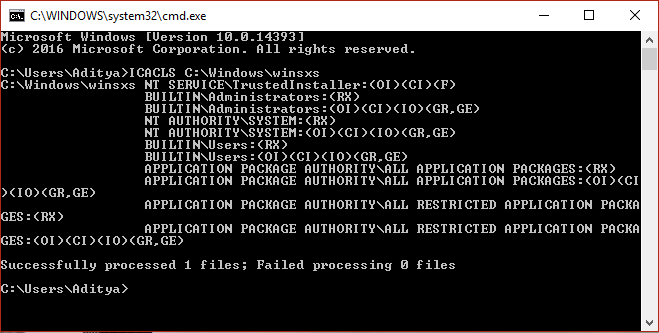
3.Close the command prompt and restart your PC.
Method 3: Run DISM commands
1.Press Windows Key + X and select Command Prompt(Admin).
2.Type the following command in cmd and hit enter after each one:
a) Dism /Online /Cleanup-Image /CheckHealth
b) Dism /Online /Cleanup-Image /ScanHealth
c) Dism /Online /Cleanup-Image /RestoreHealth

3. Wait till DISM process finishes then reboot your PC and see if you’re able to Fix Windows Resource Protection could not perform the requested operation error.
Method 4: Run startup/Automatic Repair
1.Insert the Windows 10 bootable installation DVD and restart your PC.
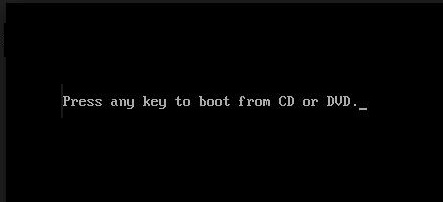
2.When prompted to Press any key to boot from CD or DVD, press any key to continue.
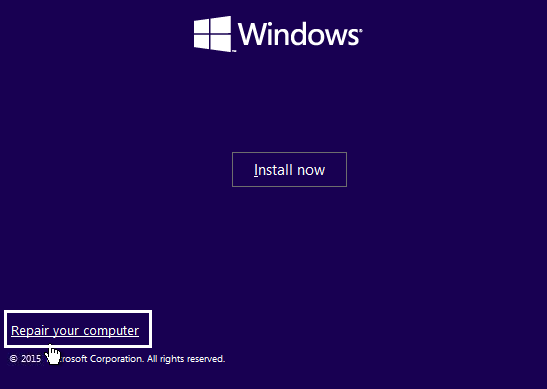
3. Select your language preferences, and click Next. Click Repair your computer in the bottom-left.
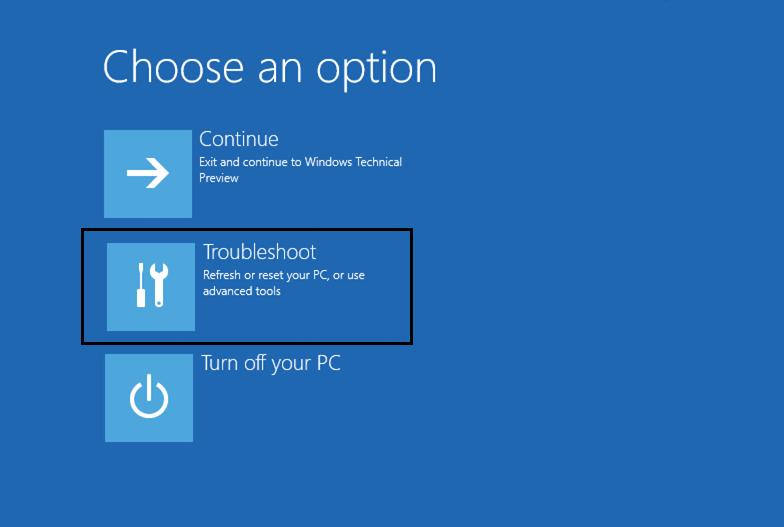
4. On choose an option screen, click Troubleshoot.
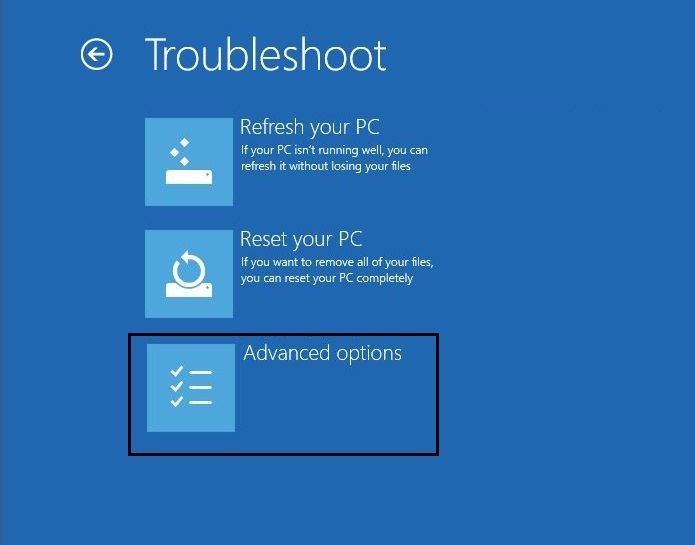
5. On Troubleshoot screen, click Advanced option.
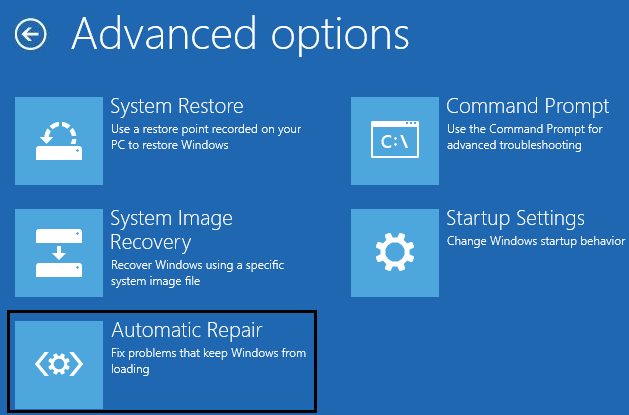
6. On the Advanced options screen, click Automatic Repair or Startup Repair.
7.Wait til the Windows Automatic/Startup Repairs complete.
8.Restart and you have successfully Fix Windows Resource Protection could not perform the requested operation, if not, continue.
……………………………………………Thank You…………………………………………


 Techsolutions