Convert GPT to MBR
If the first method doesn’t help too much, converting GPT to MBR disk can do you a great favor. It is an easier way to fix “The Selected Disk is the GPT Partition Style” error. And you can do it by using Diskpart or EaseUS free partition software. The latter one is a better choice because it allows you to manage this job without deleting partitions or losing data.
Method 1: Convert to MBR using Diskpart
Step 1: Press “Win + R” to open Run dialog > Type: cmd and hit “Enter” to bring up Command Prompt.
Step 2: Type: diskpart.exe and hit “Enter” to open “DiskPart” window.
Step 3: Type: list disk and hit “Enter”.
Step 4: Type: select disk g (Replace g with the drive letter or your disk that you want to change it to MBR.)
Step 5: Type: convert MBR and hit “Enter”. Let the program to do the disk conversion task, and then there you’ll get wanted partition table in your disk
Step 6: Type: exit to finish the task.
If The step not workout you try another option :
You can’t Delete any partition or volume it shows below the service error No Worry
Try Another way
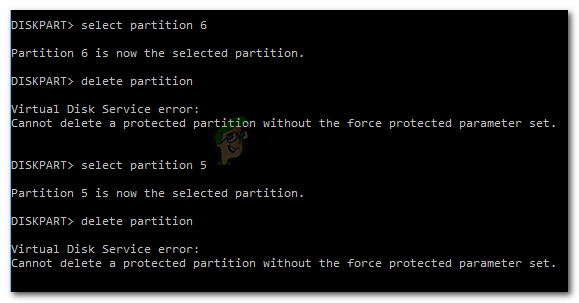
Resolving the Error Using the override parameter
Most likely, you are seeing this error as a warning that you need to be extra sure that you wish to delete the recovery partition. It’s somewhat confusing because the parameter is not indicated in the Help Delete Partitionsection of DiskPart.
Press Windows key + R to open up a Run dialog box. Then, type “diskpart” and press Enter to open the DiskPart utility. When prompted by the UAC (User Account Control), click Yes to grant administrative privileges.
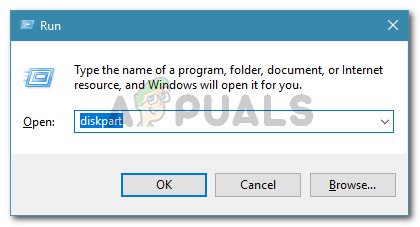
Identify the disk that you want to work with by typing the following command:
list disk
Select the list that you want to wipe or reformat by using the following command:
select disk X
- Note: X is only a placeholder for the actual number of the disk that you’re trying to handle. Please replace the placeholder with the correct number.
- Once the proper disk is selected, type the following command to see all the partitions that the selected drive is using
list partition
From the list of partitions, identify the one that you wish to delete and use the following command to select it:
select partition X
With the targeted partition selected, use the following command do signal Windows that you’re sure about the step that you’re about to perform (by using the override parameter):
delete partition override
Once the process completes successfully, type the following command to exit Diskpart:
exit
Definitely Working The Command
And Finally Detect The Pendrive dam Sure
…………………………………………………………Thank You……………………………………………………

 Techsolutions