Limited WiFi connection
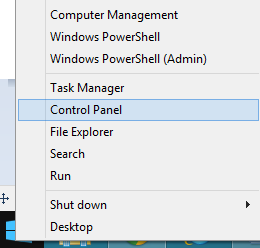
First create a system restore point. Then right-click the ‘Start’ button to access ‘Control Panel’ option and select it.
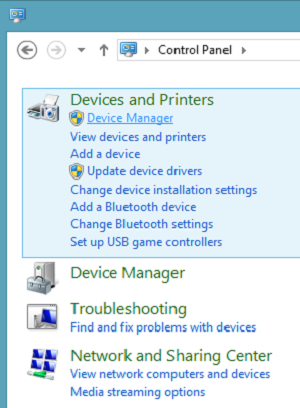
Next, choose ‘Device Manager’ option.
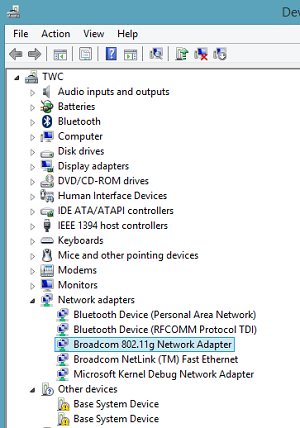
Next select ‘Network Adapters’ and under it, you will find a Wi-Fi controller listed. Select it.
Double-click the controller to open the adapter’s Property window and switch to ‘Drivers’ tab.

Next, click the ‘Disable’ button and hit ‘Ok’ to apply the changes. See if it helps. If it does not help, re-enable it and proceed to the next step.
If the above solution fails, try doing the following.
Open an admin-level command prompt in Desktop mode, type the following commands, and hit Enter after each command:
netsh int tcp set heuristics disabled
netsh int tcp set global autotuninglevel=disabled
netsh int tcp set global rss=enabled
Then type the following and hit Enter, to verify that practically all the settings are disabled.
netsh int tcp show global
Finally, reboot your machine and see if this helps.
You may also try this:
Open Command Prompt as Administrator and run the following commands
sc config licensemanager type=own
Restart the computer and see if it has helped.
If it doesn’t help, you could also try the built-in Hardware and Devices troubleshooter and see if it helps.

………………………………………… Thank you………………………………………………

 Techsolutions